
Triage Mode
Triage Mode is a focused, keyboard-driven interface for reviewing issues one at a time. It presents each finding with full context - code, impact analysis, and suggested fixes - so you can approve, reject, or defer issues at speed.
Two-Column Layout
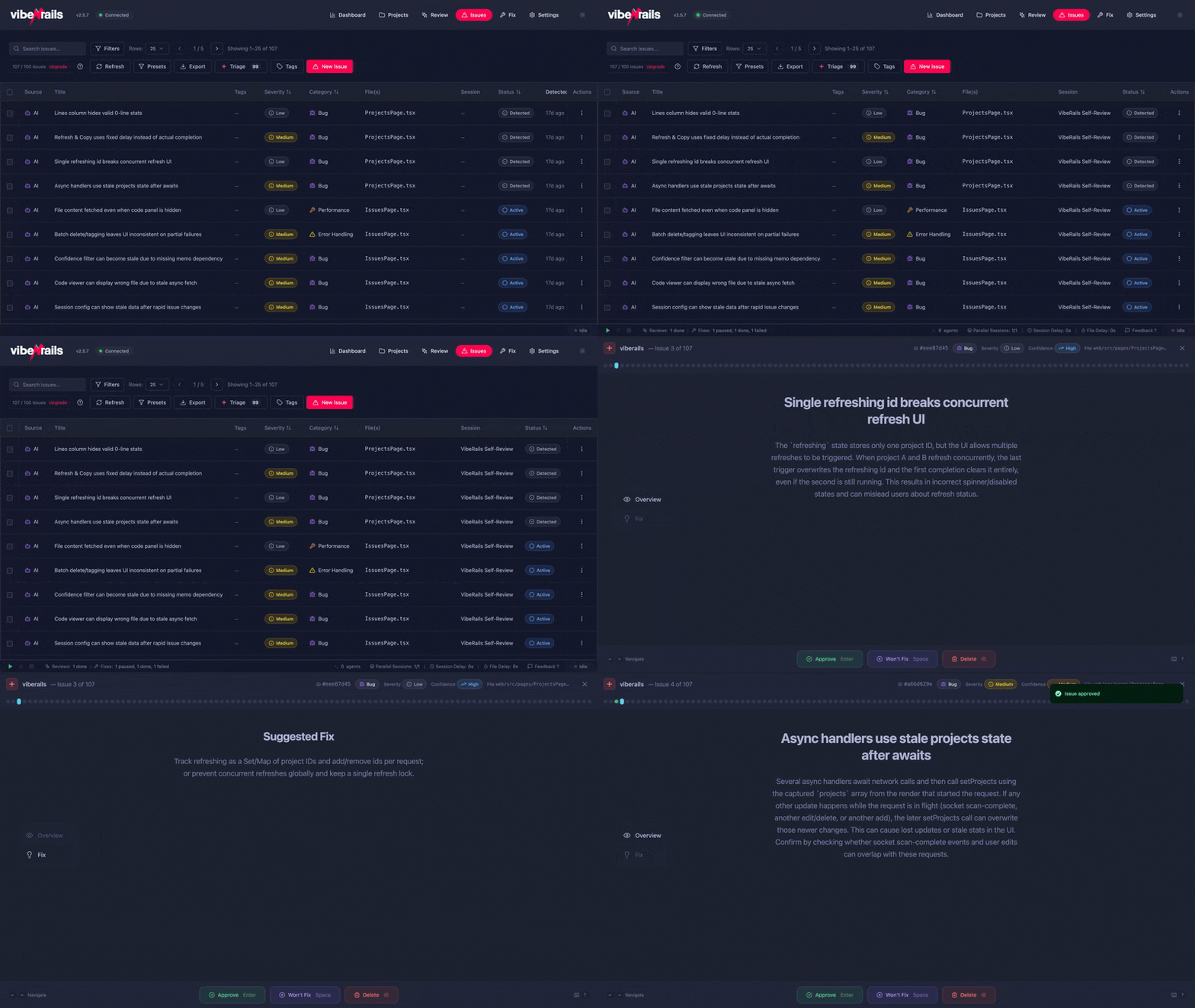
Triage Mode uses a two-column layout. The left sidebar shows the scrollable issue list with severity badges and triage status. The right panel displays the full detail for the currently selected issue, including tabbed views for different perspectives.

Left Sidebar
The sidebar lists all issues in the current triage session. Each item shows the issue title, severity badge, and a status indicator (pending, approved, rejected, or deferred). The currently selected issue is highlighted. As you triage, completed items are visually dimmed so you can track your progress.

Right Detail Panel
The right panel shows the code context for the selected issue, with syntax highlighting and the affected lines highlighted. Above the code is a tabbed interface for switching between different views.

Detail Tabs
The right panel organises information across five tabs. Switch between them using the tab bar or keyboard shortcuts (1–5).
Overview Tab
A concise summary of the issue: what the problem is, which file and line it affects, its severity, category, and confidence score from the verification pass.

Impact Tab
Explains the real-world consequences of the issue. This includes which users or code paths are affected, the potential blast radius, and a risk assessment generated by the AI model.

Fix Tab
Shows the AI model's suggested fix as a code diff. You can copy the fix to your clipboard or send it directly to a Fix Session for automated application.

Code Tab
The full source file with the affected region highlighted. You can scroll through the surrounding context to understand the broader code structure. Line numbers link directly to the file in your editor.

Details Tab
Metadata about the finding: which review session produced it, the AI model used, token count, verification status, and a raw JSON view for debugging.

Action Buttons
At the bottom of the right panel, four action buttons let you triage the current issue:
- Approve (A) - confirms the issue is valid and should be fixed.
- Reject (R) - marks the finding as a false positive.
- Defer (D) - acknowledges the issue but postpones action.
- Skip (S or →) - moves to the next issue without changing status.

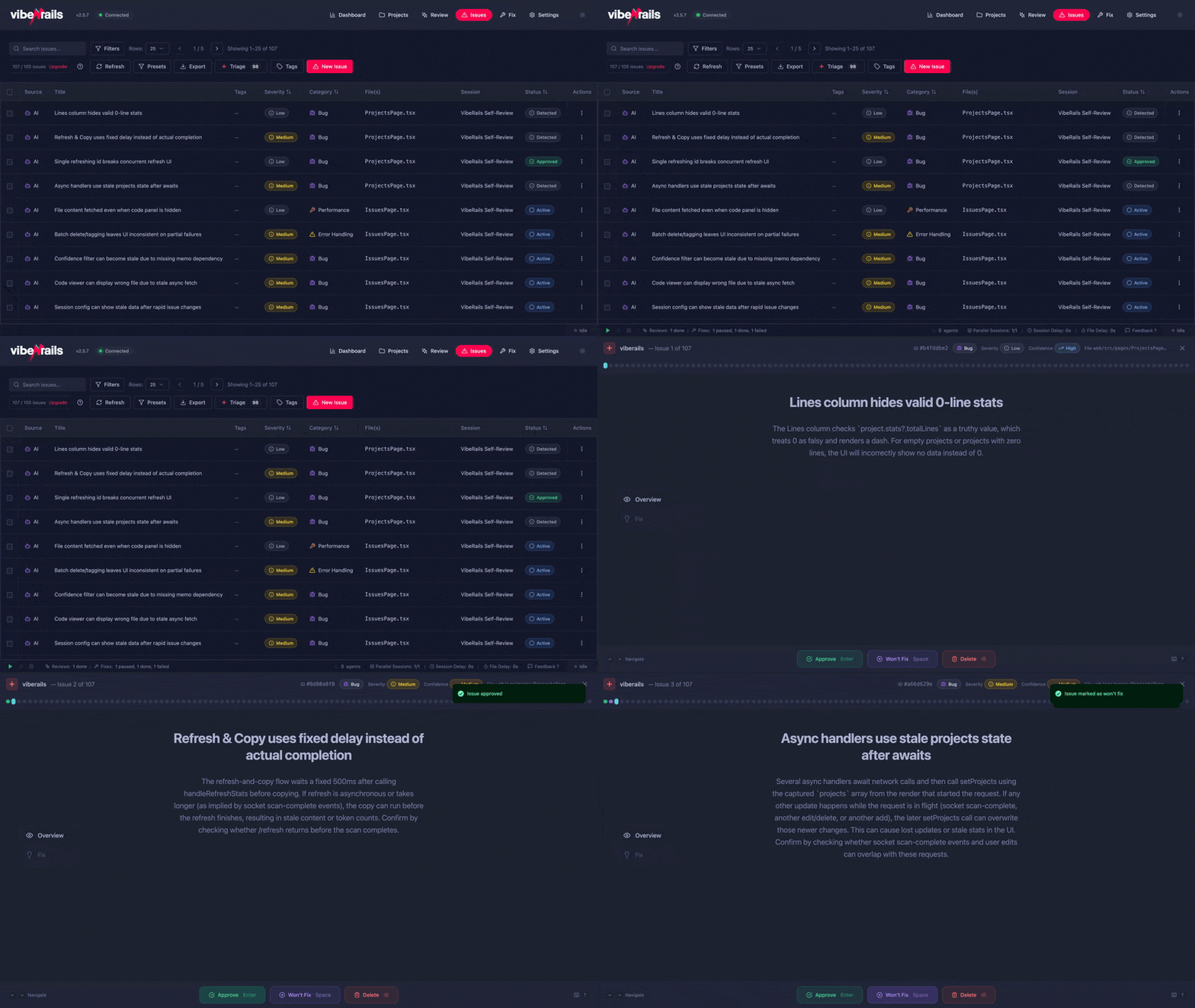
After an action, Triage Mode automatically advances to the next pending issue. This lets you flow through dozens of issues without touching the mouse.
Keyboard Shortcuts
Triage Mode is designed for keyboard-first operation. All navigation and actions are available through single-key shortcuts:
| Key | Action |
|---|---|
| ↑ / K | Previous issue |
| ↓ / J | Next issue |
| A | Approve current issue |
| R | Reject current issue |
| D | Defer current issue |
| S / → | Skip to next issue |
| 1–5 | Switch detail tabs |
| N | Open notes for current issue |
| ? | Show keyboard help overlay |
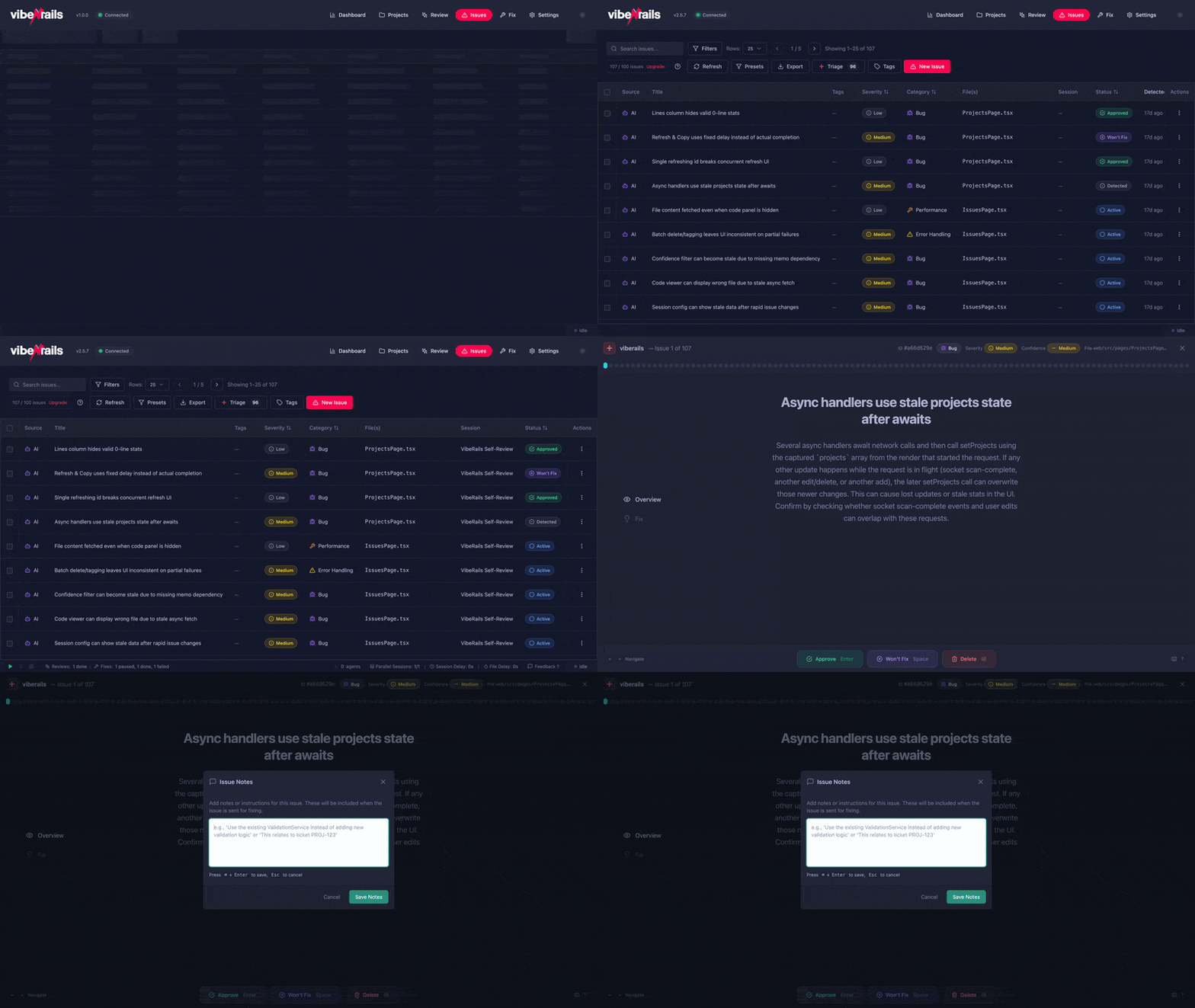
Notes
Press N or click the notes icon to open the notes panel for the current issue. Notes are free-form text that persist with the issue - use them to record reasoning, link to related issues, or leave context for teammates.
Progress Tracking
A progress bar at the top of the triage view shows how many issues you have triaged out of the total. The bar fills as you approve, reject, or defer issues, giving you a clear sense of how much work remains.

When all issues are triaged, a completion summary appears showing the breakdown: how many were approved, rejected, and deferred, along with a link to send all approved issues to a fix session.